How to Set Up a K3S Cluster in 2025

merox merox #kubernetes#k3s#ansible#proxmox

Rebuilding my K3s cluster from scratch with Ansible — VM provisioning via Cloud-Init on Proxmox, HA across three nodes, and full automation.

My first Kubernetes clusters are gone. This time I want a proper HA setup — if any machine goes down, the cluster keeps running. The target layout across my hardware:

  • 1× DELL R720k3s-master-1 and k3s-worker-1
  • 1× DELL Optiplex Micro 3050k3s-master-2 and k3s-worker-2
  • 1× DELL Optiplex Micro 3050k3s-master-3 and k3s-worker-3

Six VMs total on a Proxmox cluster: 3 Ubuntu 22.04 master nodes, 3 Ubuntu 22.04 worker nodes.

DNS and IP Addressing

Before creating any VMs, get your IP and DNS situation sorted.

For IP assignment, you have two options: assign addresses outside your DHCP range (what I do — network stays stable even if DHCP goes down), or use static MAC→IP mappings in your DHCP server.

I’m using 10.57.57.30/24 through 10.57.57.35/24 for the six VMs, with an A record in Unbound on pfSense for each:

Unbound pfSense DNS Configuration

VM Deployment with Cloud-Init

Rather than clicking through the Proxmox UI six times, I wrote a bash script that handles template creation, VM deployment, and teardown. If you’d prefer a Packer/Terraform approach, see Homelab as Code.

Warning

This script can create or destroy VMs. Keep backups of anything critical before running option 3.

Prerequisites: Proxmox up and running, SSH public key at /root/.ssh/id_rsa.pub on the Proxmox host.

The script has three modes:

Option 1 — Create Cloud-Init Template: Downloads the Ubuntu 24.04 cloud image, creates a VM, configures cloud-init, and converts it to a template.

Option 2 — Deploy VMs: Clones the template N times, sets IPs, gateway, DNS, search domain, SSH keys, CPU, RAM, and disk size per VM. Prompts for a name on each one.

Option 3 — Destroy VMs: Stops and removes VMs by ID range.

#!/bin/bash
# Function to get user input with a default value
get_input() {
local prompt=$1
local default=$2
local input
read -p "$prompt [$default]: " input
echo "${input:-$default}"
}
# Ask the user whether they want to create a template, deploy or destroy VMs
echo "Select an option:"
echo "1) Create Cloud-Init Template"
echo "2) Deploy VMs"
echo "3) Destroy VMs"
read -p "Enter your choice (1, 2, or 3): " ACTION
if [[ "$ACTION" != "1" && "$ACTION" != "2" && "$ACTION" != "3" ]]; then
echo "❌ Invalid choice. Please run the script again and select 1, 2, or 3."
exit 1
fi
# === OPTION 1: CREATE CLOUD-INIT TEMPLATE ===
if [[ "$ACTION" == "1" ]]; then
TEMPLATE_ID=$(get_input "Enter the template VM ID" "300")
STORAGE=$(get_input "Enter the storage name" "local")
TEMPLATE_NAME=$(get_input "Enter the template name" "ubuntu-cloud")
IMG_URL="https://cloud-images.ubuntu.com/noble/current/noble-server-cloudimg-amd64.img"
IMG_FILE="/root/noble-server-cloudimg-amd64.img"
echo "📥 Downloading Ubuntu Cloud image for cloud-init setup..."
cd /root
wget -O $IMG_FILE $IMG_URL || { echo "❌ Failed to download the image"; exit 1; }
echo "🖥️ Creating VM $TEMPLATE_ID..."
qm create $TEMPLATE_ID --memory 2048 --cores 2 --name $TEMPLATE_NAME --net0 virtio,bridge=vmbr0
echo "💾 Importing disk to storage ($STORAGE)..."
qm disk import $TEMPLATE_ID $IMG_FILE $STORAGE || { echo "❌ Failed to import disk"; exit 1; }
echo "🔗 Attaching disk..."
qm set $TEMPLATE_ID --scsihw virtio-scsi-pci --scsi0 $STORAGE:vm-$TEMPLATE_ID-disk-0
echo "☁️ Adding Cloud-Init drive..."
qm set $TEMPLATE_ID --ide2 $STORAGE:cloudinit
echo "🛠️ Configuring boot settings..."
qm set $TEMPLATE_ID --boot c --bootdisk scsi0
echo "🖧 Adding serial console..."
qm set $TEMPLATE_ID --serial0 socket --vga serial0
echo "📌 Converting VM to template..."
qm template $TEMPLATE_ID
echo "✅ Cloud-Init Template created successfully!"
exit 0
fi
# === OPTION 2: DEPLOY VMs ===
if [[ "$ACTION" == "2" ]]; then
TEMPLATE_ID=$(get_input "Enter the template VM ID" "300")
START_ID=$(get_input "Enter the starting VM ID" "301")
NUM_VMS=$(get_input "Enter the number of VMs to deploy" "6")
STORAGE=$(get_input "Enter the storage name" "dataz2")
IP_PREFIX=$(get_input "Enter the IP prefix (e.g., 10.57.57.)" "10.57.57.")
IP_START=$(get_input "Enter the starting IP last octet" "30")
GATEWAY=$(get_input "Enter the gateway IP" "10.57.57.1")
DNS_SERVERS=$(get_input "Enter the DNS servers (space-separated)" "8.8.8.8 1.1.1.1")
DOMAIN_SEARCH=$(get_input "Enter the search domain" "merox.dev")
DISK_SIZE=$(get_input "Enter the disk size (e.g., 100G)" "100G")
RAM_SIZE=$(get_input "Enter the RAM size in MB" "16384")
CPU_CORES=$(get_input "Enter the number of CPU cores" "4")
CPU_SOCKETS=$(get_input "Enter the number of CPU sockets" "4")
SSH_KEY_PATH=$(get_input "Enter the SSH public key file path" "/root/.ssh/id_rsa.pub")
if [[ ! -f "$SSH_KEY_PATH" ]]; then
echo "❌ Error: SSH key file not found at $SSH_KEY_PATH"
exit 1
fi
for i in $(seq 0 $((NUM_VMS - 1))); do
VM_ID=$((START_ID + i))
IP="$IP_PREFIX$((IP_START + i))/24"
VM_NAME=$(get_input "Enter the name for VM $VM_ID" "ubuntu-vm-$((i+1))")
echo "🔹 Creating VM: $VM_ID (Name: $VM_NAME, IP: $IP)"
if qm status $VM_ID &>/dev/null; then
echo "⚠️ VM $VM_ID already exists, removing..."
qm stop $VM_ID &>/dev/null
qm destroy $VM_ID
fi
if ! qm clone $TEMPLATE_ID $VM_ID --full --name $VM_NAME --storage $STORAGE; then
echo "❌ Failed to clone VM $VM_ID, skipping..."
continue
fi
qm set $VM_ID --memory $RAM_SIZE \
--cores $CPU_CORES \
--sockets $CPU_SOCKETS \
--cpu host \
--serial0 socket \
--vga serial0 \
--ipconfig0 ip=$IP,gw=$GATEWAY \
--nameserver "$DNS_SERVERS" \
--searchdomain "$DOMAIN_SEARCH" \
--sshkey "$SSH_KEY_PATH"
qm set $VM_ID --delete ide2 || true
qm set $VM_ID --ide2 $STORAGE:cloudinit,media=cdrom
qm cloudinit update $VM_ID
echo "🔄 Resizing disk to $DISK_SIZE..."
qm resize $VM_ID scsi0 +$DISK_SIZE
qm start $VM_ID
echo "✅ VM $VM_ID ($VM_NAME) created and started!"
done
exit 0
fi
# === OPTION 3: DESTROY VMs ===
if [[ "$ACTION" == "3" ]]; then
START_ID=$(get_input "Enter the starting VM ID to delete" "301")
NUM_VMS=$(get_input "Enter the number of VMs to delete" "6")
echo "⚠️ Destroying VMs from $START_ID to $((START_ID + NUM_VMS - 1))..."
for i in $(seq 0 $((NUM_VMS - 1))); do
VM_ID=$((START_ID + i))
if qm status $VM_ID &>/dev/null; then
echo "🛑 Stopping and destroying VM $VM_ID..."
qm stop $VM_ID &>/dev/null
qm destroy $VM_ID
else
echo "ℹ️ VM $VM_ID does not exist. Skipping..."
fi
done
echo "✅ Specified VMs have been destroyed."
exit 0
fi

After running option 2, verify the VMs appear in Proxmox and SSH in:

Terminal window
ssh ubuntu@k3s-master-01

Guide Structure

Follow these in order:

  1. K3s Installation with Ansible — automated cluster deployment
  2. Traefik Setup and SSL — ingress controller with Let’s Encrypt
  3. Cluster Management — Rancher for management, Longhorn for storage
  4. Advanced Resources — monitoring, NFS, ArgoCD, upgrades

Installing K3s with Ansible

merox merox #kubernetes#k3s#ansible#automation

Automated K3s cluster deployment using Ansible playbooks with HA configuration across multiple nodes

This covers deploying K3s across your VMs using Ansible. We’re using a fork of TechnoTim’s k3s-ansible repo.

Prerequisites

Install Ansible on your management machine:

Debian/Ubuntu:

Terminal window
sudo apt update && sudo apt install -y ansible

macOS:

Terminal window
brew install ansible

Clone the repo:

Terminal window
git clone https://github.com/meroxdotdev/k3s-ansible

Configuration

Terminal window
cd k3s-ansible
cp ansible.example.cfg ansible.cfg
ansible-galaxy install -r ./collections/requirements.yml
cp -R inventory/sample inventory/my-cluster

inventory/my-cluster/hosts.ini — set your node IPs:

[master]
10.57.57.30
10.57.57.31
10.57.57.32
[node]
10.57.57.33
10.57.57.34
10.57.57.35
[k3s_cluster:children]
master
node

inventory/my-cluster/group_vars/all.yml — key fields to edit:

  • ansible_user: default VM user is ubuntu
  • system_timezone: set to your timezone, e.g. Europe/Bucharest
  • Networking: comment out #flannel_iface: eth0 and use calico_iface: "eth0" for better network policies. Flannel works too if you want something simpler.
  • apiserver_endpoint: 10.57.57.100 — an unused IP on your LAN, acts as the VIP for the K3s control plane
  • k3s_token: any alphanumeric string
  • metal_lb_ip_range: 10.57.57.80-10.57.57.90 — a range on your LAN, outside your DHCP pool, not used by anything else. This is how K3s services get exposed to your network.
Note

Make sure SSH key authentication is working between your management machine and all VMs before running the playbook.

Deploy

Terminal window
ansible-playbook ./site.yml -i ./inventory/my-cluster/hosts.ini

Once done, pull the kubeconfig and verify:

Terminal window
scp ubuntu@10.57.57.30:~/.kube/config .
mkdir -p ~/.kube
mv config ~/.kube/
kubectl get nodes

Next Steps

Proceed to the Traefik Setup guide.

Traefik Setup and SSL Configuration

merox merox #kubernetes#traefik#ssl#cert-manager

Deploy Traefik ingress controller with Let's Encrypt SSL certificates using Cloudflare DNS challenge

This covers deploying Traefik as the ingress controller and wiring up cert-manager with Let’s Encrypt via Cloudflare.

Deploying Traefik

Install Helm:

Terminal window
curl -fsSL -o get_helm.sh https://raw.githubusercontent.com/helm/helm/main/scripts/get-helm-3
chmod 700 get_helm.sh
./get_helm.sh
Terminal window
kubectl create namespace traefik
helm repo add traefik https://helm.traefik.io/traefik
helm repo update
git clone https://github.com/techno-tim/launchpad

In launchpad/kubernetes/traefik-cert-manager/, open values.yaml and set the LoadBalancer IP to something from your MetalLB range, then install:

Terminal window
helm install --namespace=traefik traefik traefik/traefik --values=values.yaml

Verify:

Terminal window
kubectl get svc --all-namespaces -o wide

Expected output:

Terminal window
NAMESPACE NAME TYPE CLUSTER-IP EXTERNAL-IP PORT(S) AGE SELECTOR
calico-system calico-typha ClusterIP 10.43.80.131 <none> 5473/TCP 2d20h k8s-app=calico-typha
traefik traefik LoadBalancer 10.43.185.67 10.57.57.80 80:32195/TCP,443:31598/TCP,443:31598/UDP 53s app.kubernetes.io/instance=traefik,app.kubernetes.io/name=traefik

Apply middleware:

Terminal window
kubectl apply -f default-headers.yaml
kubectl get middleware

Expected output:

Terminal window
NAME AGE
default-headers 4s

Traefik Dashboard

Generate a base64-encoded credential:

Terminal window
sudo apt-get install apache2-utils
htpasswd -nb merox password | openssl base64

Paste the output into dashboard/secret-dashboard.yaml:

---
apiVersion: v1
kind: Secret
metadata:
name: traefik-dashboard-auth
namespace: traefik
type: Opaque
data:
users: abc123==

Point your DNS server to the MetalLB IP from values.yaml:

DNS Configuration

Set your domain in dashboard/ingress.yaml:

Terminal window
routes:
- match: Host(`traefik.k3s.your.domain`)

Apply everything from the traefik/dashboard folder:

Terminal window
kubectl apply -f secret-dashboard.yaml
kubectl get secrets --namespace traefik
kubectl apply -f middleware.yaml
kubectl apply -f ingress.yaml

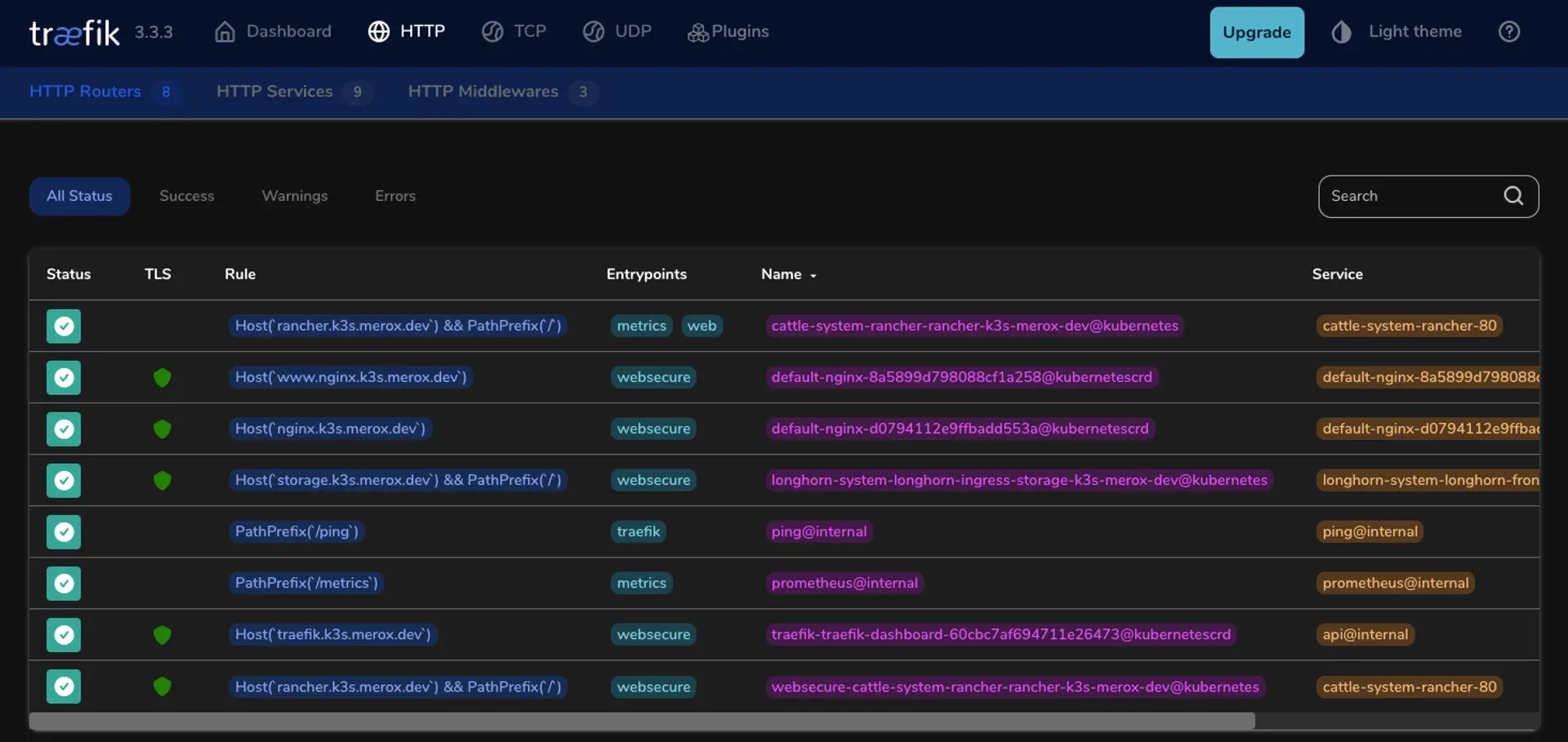
The dashboard will be up but using a self-signed cert. The next section fixes that.

Cert-Manager

From traefik-cert-manager/cert-manager:

Terminal window
helm repo add jetstack https://charts.jetstack.io
helm repo update
kubectl create namespace cert-manager
Note

Check the releases page and use the latest version of cert-manager.

Terminal window
kubectl apply -f https://github.com/cert-manager/cert-manager/releases/download/v1.17.0/cert-manager.crds.yaml
helm install cert-manager jetstack/cert-manager --namespace cert-manager --values=values.yaml --version v1.17.0

Apply your Cloudflare API secret (use an API Token, not a global key):

Terminal window
kubectl apply -f issuers/secret-cf-token.yaml

Before applying the remaining files, edit:

  • issuers/letsencrypt-production.yaml: email, dnsZones
  • certificates/production/your-domain-com.yaml: name, secretName, commonName, dnsNames
Terminal window
kubectl apply -f values.yaml
kubectl apply -f issuers/letsencrypt-production.yaml
kubectl apply -f certificates/production/your-domain-com.yaml

Monitor progress:

Terminal window
kubectl logs -n cert-manager -f cert-manager-(your-instance-name)
kubectl get challenges

Traefik K3S Dashboard

Next Steps

Proceed to the Cluster Management guide.

Cluster Management with Rancher and Longhorn

merox merox #kubernetes#rancher#longhorn#storage

Deploy Rancher for Kubernetes cluster management and Longhorn for distributed block storage

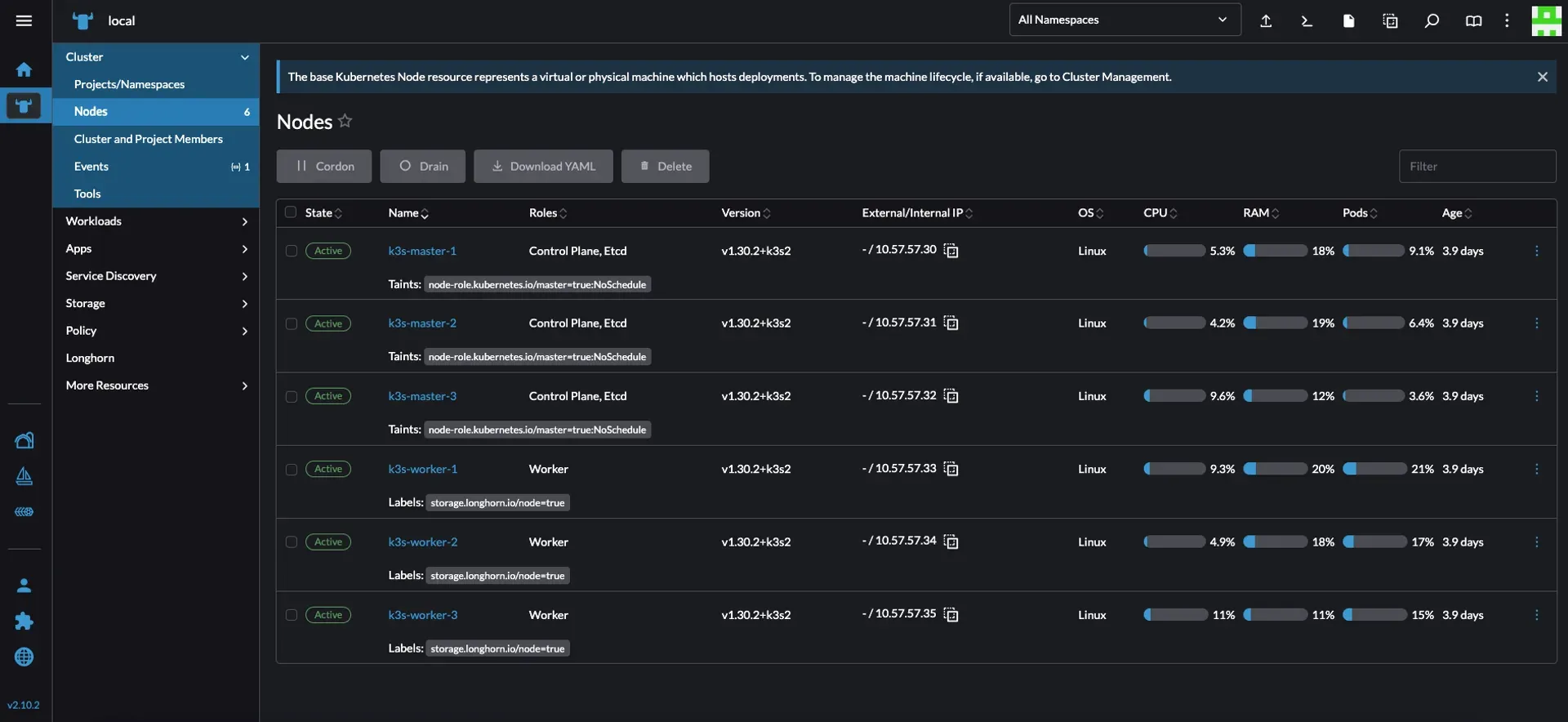
This covers deploying Rancher for cluster management and Longhorn for distributed persistent storage.

Rancher

Terminal window
helm repo add rancher-latest https://releases.rancher.com/server-charts/stable
kubectl create namespace cattle-system

Traefik is already handling ingress, so set tls=external:

Terminal window
helm install rancher rancher-stable/rancher \
--namespace cattle-system \
--set hostname=rancher.k3s.your.domain \
--set tls=external \
--set replicas=3

Create ingress.yml:

apiVersion: traefik.io/v1alpha1
kind: IngressRoute
metadata:
name: rancher
namespace: cattle-system
spec:
entryPoints:
- websecure
routes:
- match: Host(`rancher.k3s.your.domain`)
kind: Rule
services:
- name: rancher
port: 443
middlewares:
- name: default-headers
tls:
secretName: k3s-your-domain-tls
Terminal window
kubectl apply -f ingress.yml

Rancher Dashboard

Longhorn

Install prerequisites on the nodes you want to use for storage:

Terminal window
sudo apt update && sudo apt install -y open-iscsi nfs-common
sudo systemctl enable iscsid
sudo systemctl start iscsid

Label your three worker nodes for HA:

Terminal window
kubectl label node k3s-worker-1 storage.longhorn.io/node=true
kubectl label node k3s-worker-2 storage.longhorn.io/node=true
kubectl label node k3s-worker-3 storage.longhorn.io/node=true

Deploy (this manifest is patched to use the storage.longhorn.io/node=true label):

Terminal window
kubectl apply -f https://raw.githubusercontent.com/meroxdotdev/merox.docs/refs/heads/master/K3S/cluster-deployment/longhorn.yaml

Verify:

Terminal window
kubectl get pods --namespace longhorn-system --watch
kubectl get nodes
kubectl get svc -n longhorn-system

Exposing Longhorn via Traefik

Create middleware.yml:

apiVersion: traefik.io/v1alpha1
kind: Middleware
metadata:
name: longhorn-headers
namespace: longhorn-system
spec:
headers:
customRequestHeaders:
X-Forwarded-Proto: "https"

Create ingress.yml:

apiVersion: networking.k8s.io/v1
kind: Ingress
metadata:
name: longhorn-ingress
namespace: longhorn-system
annotations:
traefik.ingress.kubernetes.io/router.entrypoints: websecure
traefik.ingress.kubernetes.io/router.tls: "true"
traefik.ingress.kubernetes.io/router.middlewares: longhorn-system-longhorn-headers@kubernetescrd
spec:
rules:
- host: storage.k3s.your.domain
http:
paths:
- path: /
pathType: Prefix
backend:
service:
name: longhorn-frontend
port:
number: 80
tls:
- hosts:
- storage.k3s.your.domain
secretName: k3s-your-domain-tls

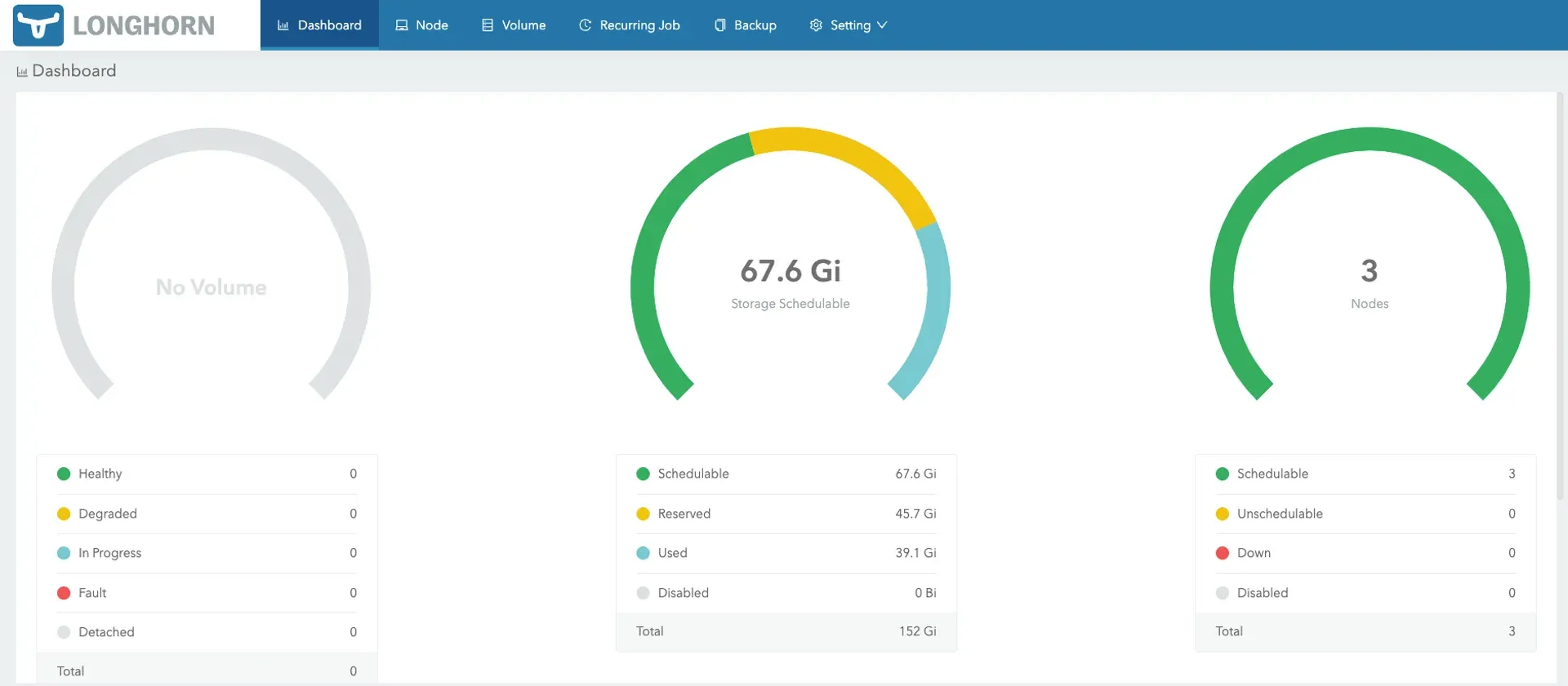
Longhorn Storage Dashboard

Next Steps

Proceed to the Advanced Resources guide.

Advanced Resources and Best Practices

merox merox #kubernetes#monitoring#argocd#nfs

Additional tools and resources for monitoring, storage, continuous deployment, and cluster maintenance

NFS Storage

Merox Docs — NFS Storage Guide

Monitoring

Netdata is my go-to for cluster monitoring. You can also deploy Prometheus and Grafana through Rancher, but watch the resource usage — without tuning, Prometheus can get heavy due to query volume.

ArgoCD

ArgoCD docs on merox.dev

Cluster Upgrades

How to Upgrade K3s

Final Thoughts

When I first set up K3s about a year ago, I couldn’t find a single source that covered everything needed for even a basic homelab cluster. That’s why I wrote this. If something’s missing or unclear, leave a comment and I’ll update it.

Special Thanks